Admin Frontend Guide
Who is this for?
Foundation administrators, operators, and anyone using the Centurion Admin web interface to manage validator seats, operators, users, and allowlist settings.
The Admin Frontend is a Next.js application that provides a visual interface for all Seat Manager operations. It connects to the Fastify API backend and supports the full seat lifecycle — from creation through activation — with built-in safety confirmations for every on-chain action.
Starting the Admin Frontend
# Terminal 1: Start the API backend
DATABASE_URL="postgresql://..." \
ADMIN_TOKEN="your-secure-token" \
SEAT_MANAGER_OWNER_PRIVATE_KEY=0x... \
  node dist/index.js api-v2 --port 8080

# Terminal 2: Start the admin frontend (port 3003, proxies API to :8080)
cd apps/admin && npm run dev
Open http://localhost:3003 in your browser.
HTTPS staging cookie setting
If you run the admin/API behind HTTPS in staging with NODE_ENV not equal to production, set SEAT_MANAGER_SECURE_COOKIES=true so session and CSRF cookies are sent with the Secure attribute.
Login
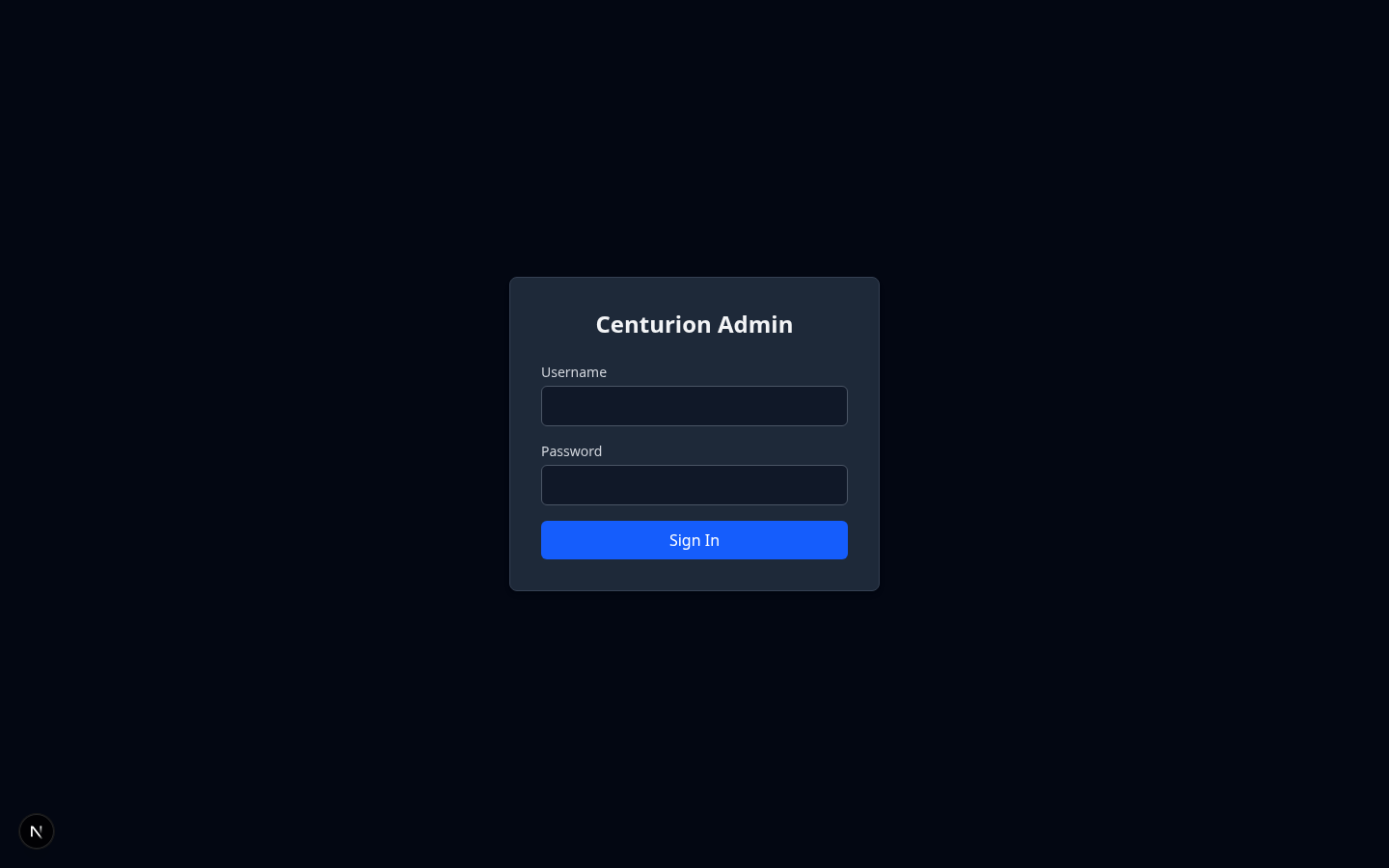
The login page prompts for username and password. Authentication is session-based — a session token is issued on successful login and used for all subsequent API requests.
| Field | Requirement |
|---|---|
| Username | Required |
| Password | Required |
After login, you are redirected to the Dashboard. Your username and role are displayed in the sidebar.
Sidebar Navigation
The left sidebar is always visible and provides access to all sections:
| Page | Description |
|---|---|
| Dashboard | System health, seat overview, alerts, recent activity |
| Seats | Full seat lifecycle management |
| Operators | Operator entity management |
| Users | User accounts and RBAC (ADMIN only) |
| Audit Log | Searchable history of all actions |
| Settings | Allowlist controls and freeze pipeline |
The sidebar also shows the logged-in user's name and role, and provides a Logout button.
Dashboard
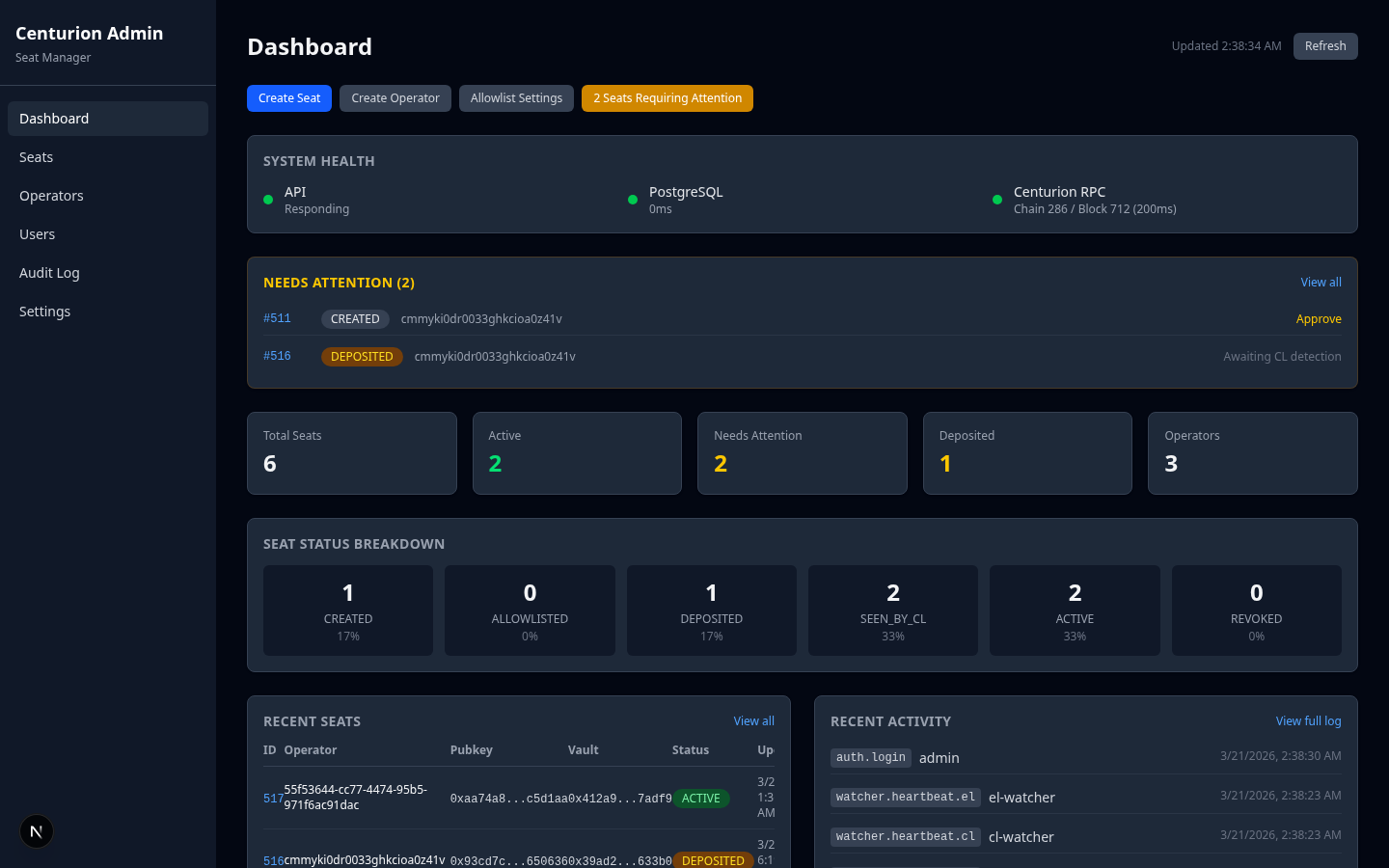
The Dashboard provides a high-level operational overview.
Quick Actions
The top bar offers shortcut buttons:
| Button | Action |
|---|---|
| Create Seat | Opens the Seats page |
| Create Operator | Opens the Operators page |
| Allowlist Settings | Opens the Settings page |
| Seats Requiring Attention | Filters to seats needing action (shown only when applicable) |
System Health
Three health indicators with latency measurements:
| Indicator | What it checks |
|---|---|
| API | Backend is responding |
| PostgreSQL | Database connection and latency |
| Centurion RPC | Chain ID, current block number, RPC latency |
Each indicator shows a green dot when healthy.
Needs Attention
Lists seats in intermediate states (CREATED, ALLOWLISTED, DEPOSITED) that require a manual action. Each entry shows:
- Seat ID (clickable link to detail page)
- Current status badge
- Operator name
- Suggested next action (e.g., "Approve", "Deposit", "Awaiting watcher")
Seat Status Breakdown
Six cards showing the count and percentage of seats in each lifecycle state:
CREATED | ALLOWLISTED | DEPOSITED | SEEN_BY_CL | ACTIVE | REVOKED
Clicking a card navigates to the Seats page filtered to that status.
Recent Seats & Recent Activity
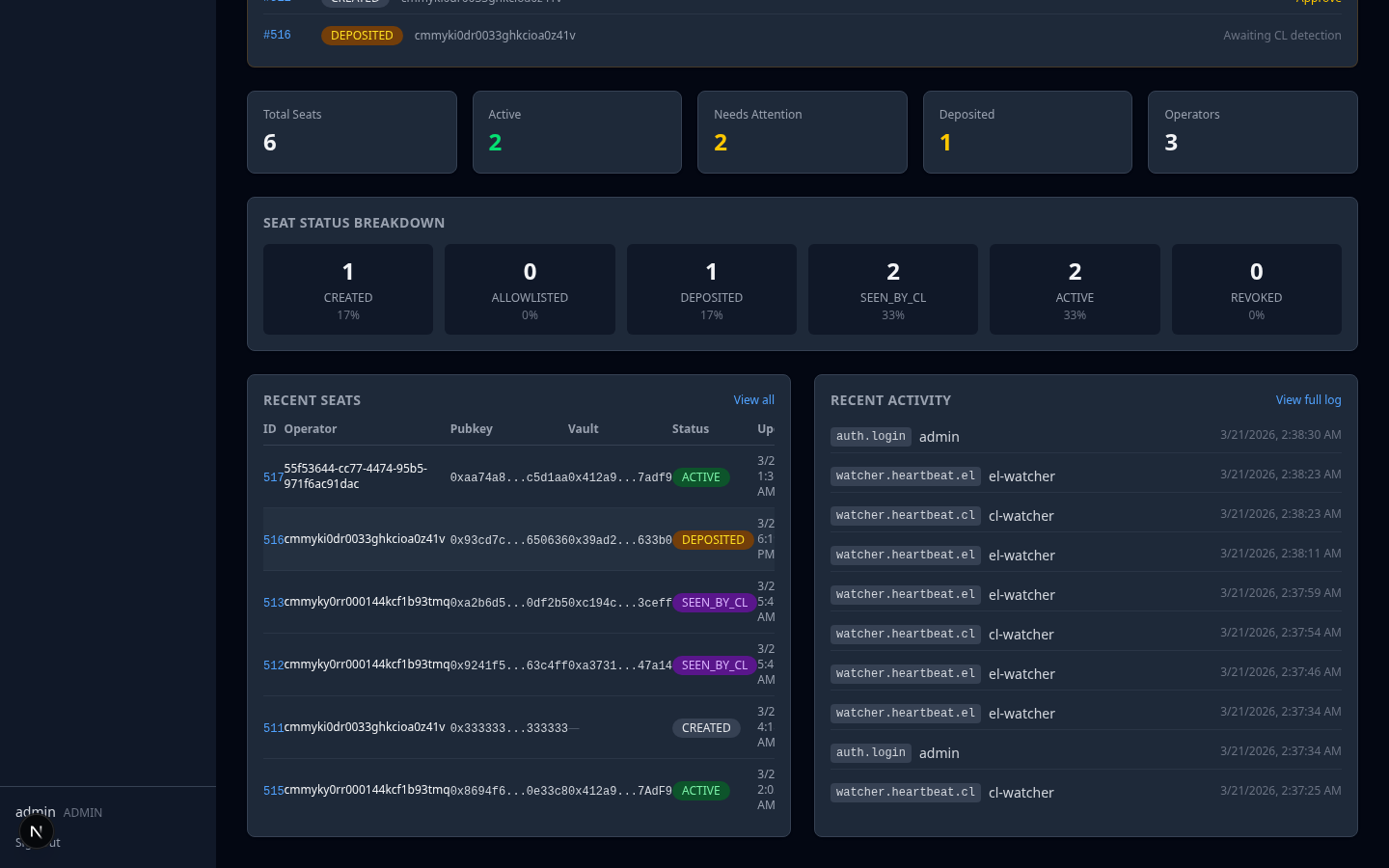
Recent Seats shows the 8 most recently updated seats with columns: ID, Operator, Pubkey, Vault, Status, and last update time.
Recent Activity shows the 10 most recent audit log entries with the action type, actor, associated seat, and timestamp. A "View Full Log" link opens the full Audit Log page.
Seats
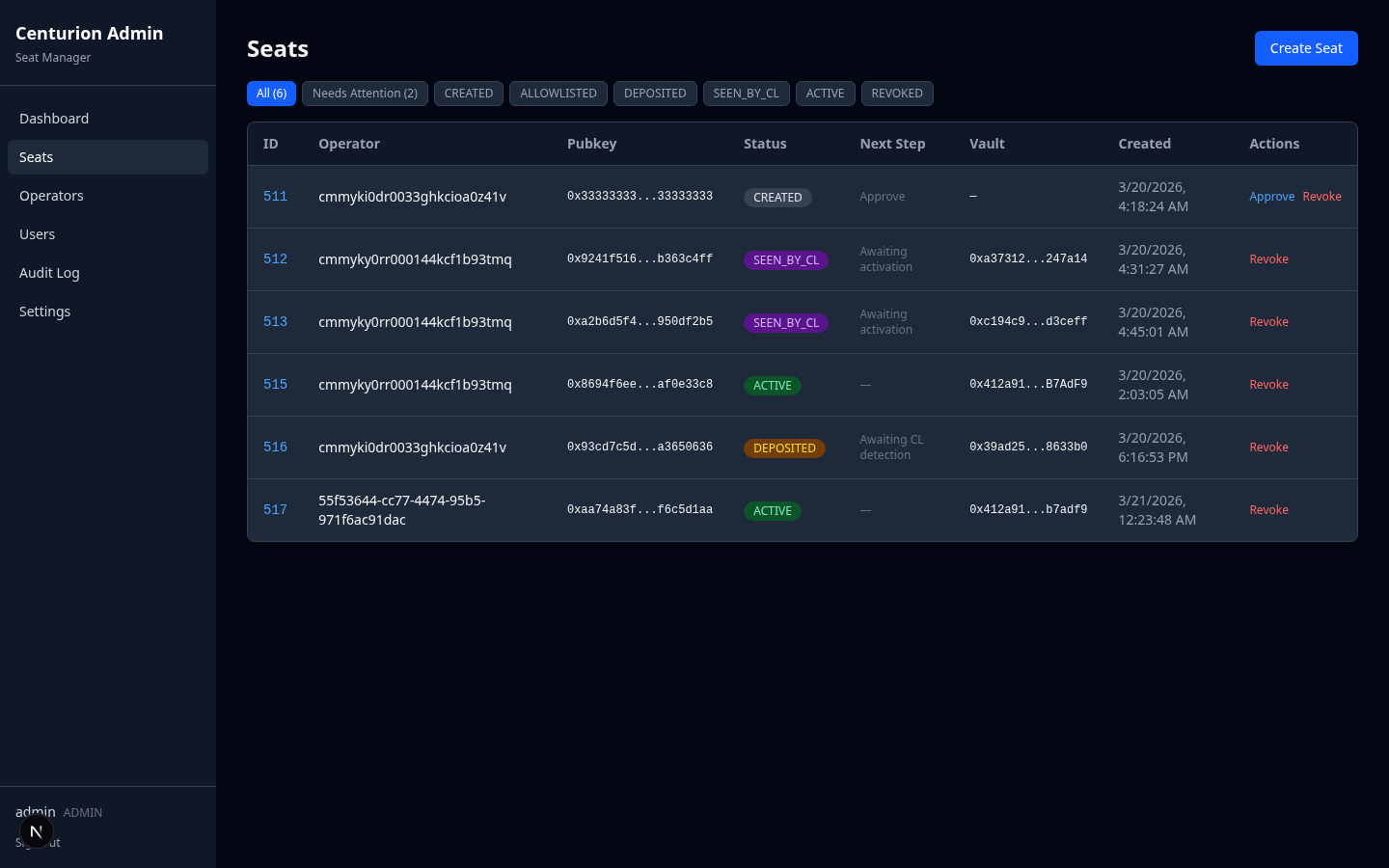
The Seats page is the primary operational interface. It supports the full validator seat lifecycle.
Seat List
Status filter tabs across the top let you filter seats by lifecycle state. Each tab shows the count of seats in that state. A special NEEDS_ATTENTION tab shows seats requiring manual action.
The table displays:
| Column | Description |
|---|---|
| ID | Seat number (clickable — opens detail page) |
| Operator | Assigned operator name |
| Pubkey | BLS public key (truncated, copyable) |
| Status | Color-coded badge |
| Next Step | Suggested action based on current status |
| Vault | Vault contract address (truncated, copyable) |
| Created | Timestamp |
| Actions | Context-dependent action buttons |
Row actions appear based on the seat's current status:
| Status | Available Actions |
|---|---|
CREATED |
Approve, Revoke |
ALLOWLISTED |
Deposit, Revoke |
DEPOSITED |
Revoke |
SEEN_BY_CL |
Revoke |
ACTIVE |
Revoke |
REVOKED |
— (terminal state) |
Creating a Seat
Click Create Seat to open the creation dialog. Three tabs offer different onboarding modes:
Tab 1: External (BYO-BLS)
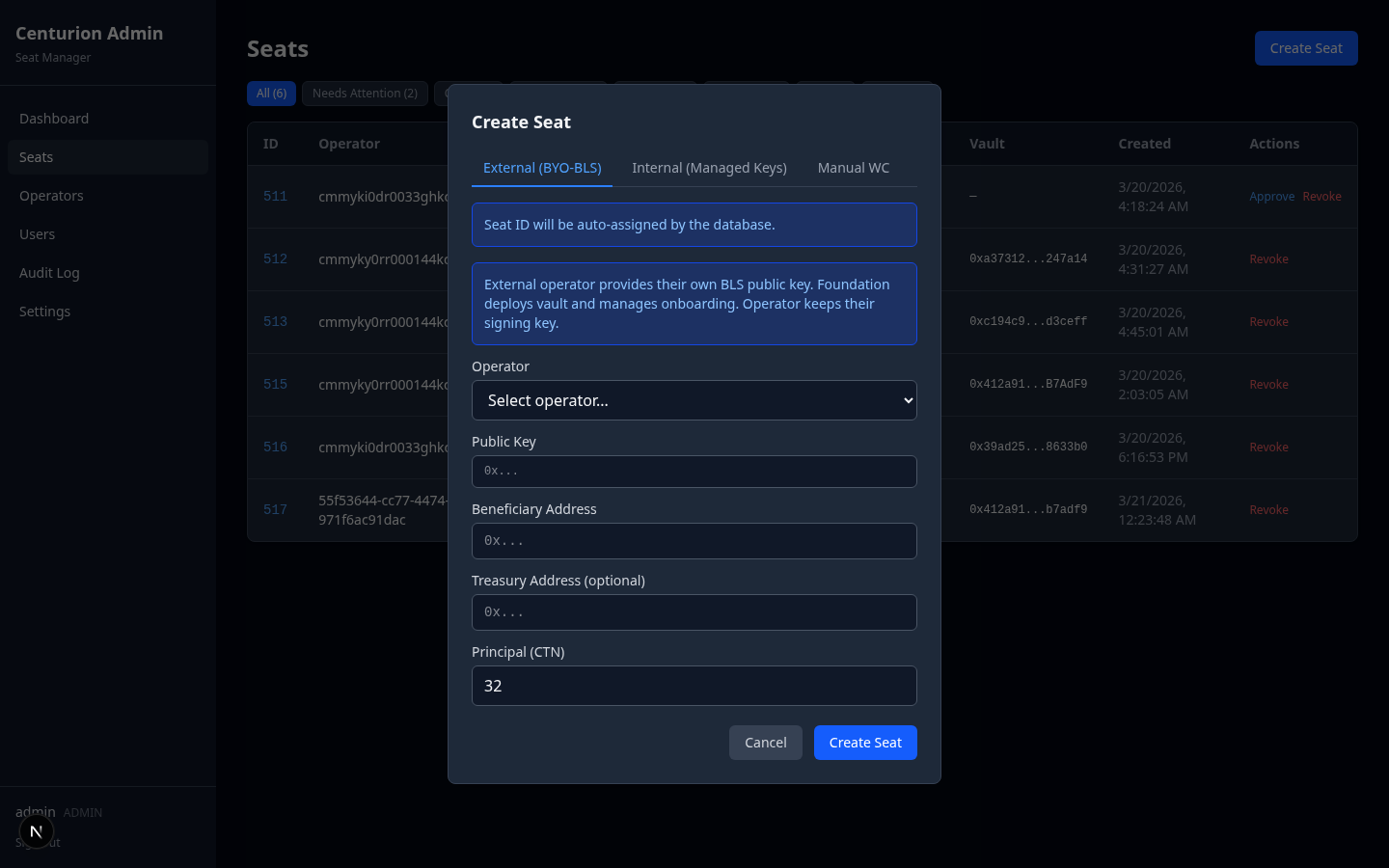
The recommended path for external operators. The operator provides their own BLS public key — the foundation never touches the signing key.
| Field | Description | Validation |
|---|---|---|
| Operator | Select from enabled operators | Required (dropdown) |
| Public Key | Operator's BLS public key | 0x + 96 hex characters |
| Beneficiary Address | Wallet that receives rewards | 0x + 40 hex characters |
| Treasury Address | Foundation address for principal recovery (optional — defaults to owner) | 0x + 40 hex characters |
| Principal (CTN) | Staked amount | Default: 32 |
This atomically deploys a WithdrawalVault on-chain, derives withdrawal credentials from the vault address, and creates the seat in CREATED status.
After creation, share the vault address with the operator so they can generate deposit data signed over the vault's withdrawal credentials.
Tab 2: Internal (Managed Keys)
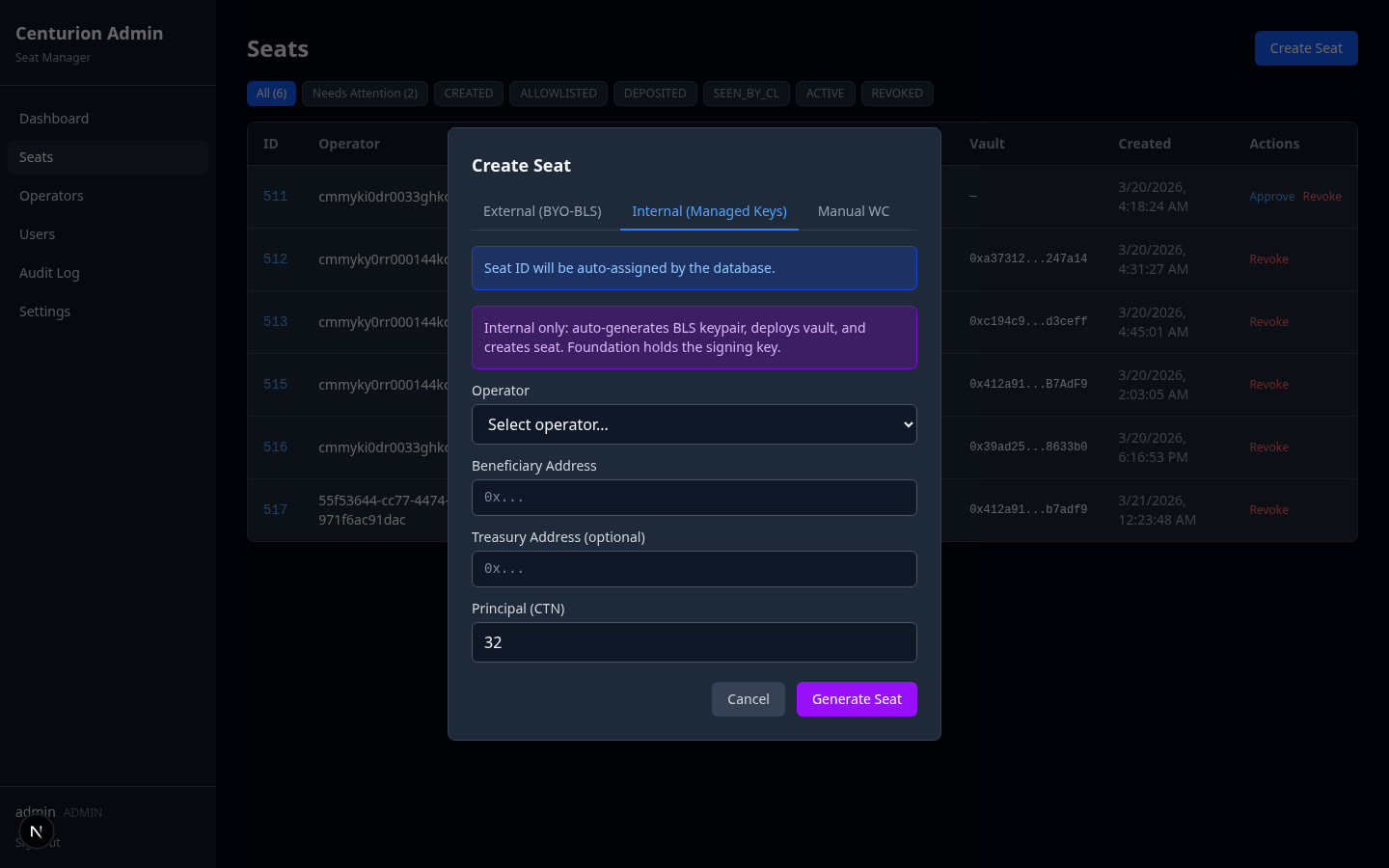
For foundation-managed validators only. Auto-generates a BLS keypair from the foundation's mnemonic.
Do not use for external operators
This flow creates key custody obligations. Use the External (BYO-BLS) tab for external operators.
| Field | Description |
|---|---|
| Operator | Select from enabled operators |
| Beneficiary Address | Wallet that receives rewards |
| Treasury Address | Optional (defaults to owner) |
| Principal (CTN) | Default: 32 |
This atomically generates a BLS keypair, deploys a vault, and creates the seat.
Tab 3: Manual WC
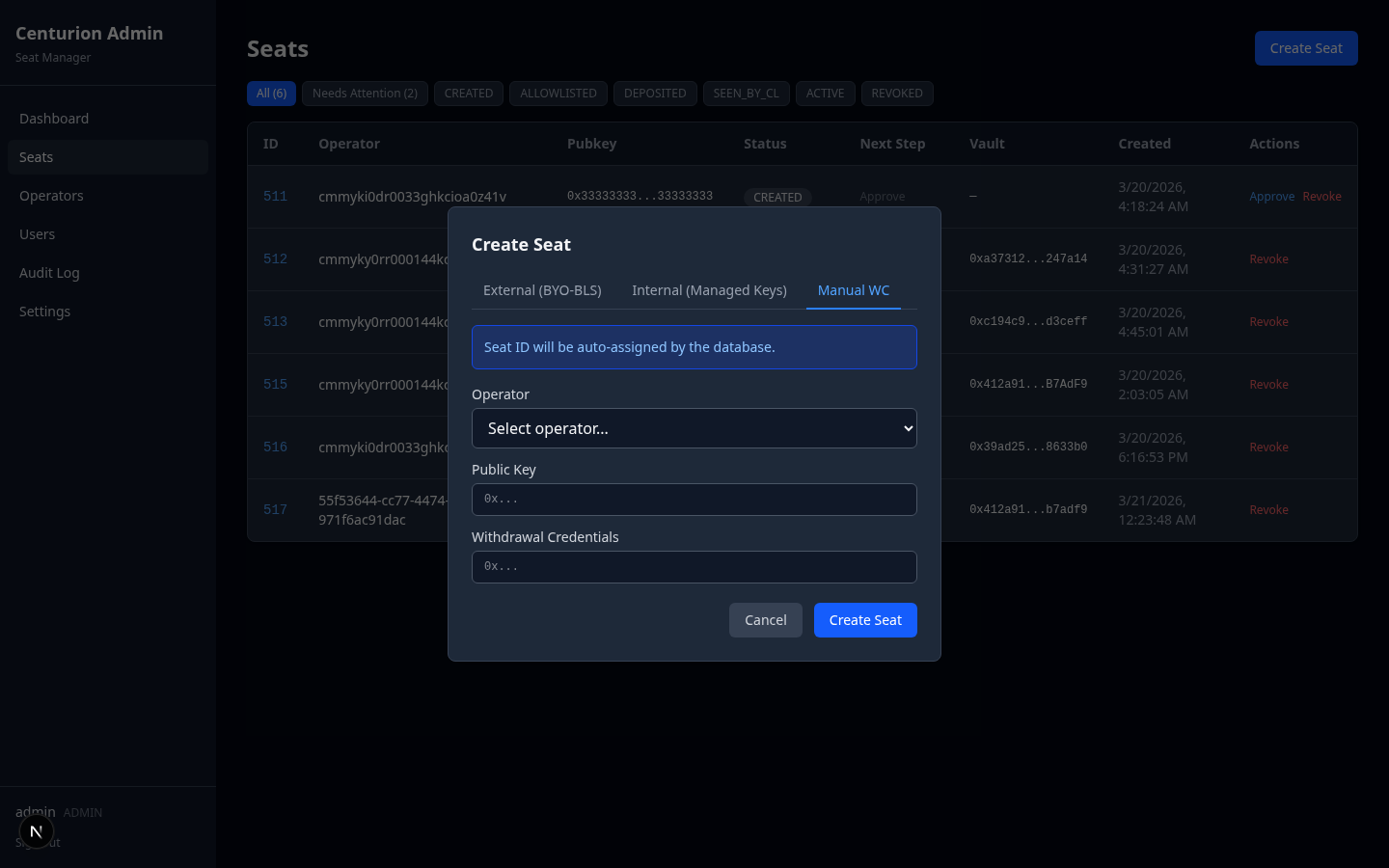
For advanced use cases where withdrawal credentials are specified directly.
| Field | Description | Validation |
|---|---|---|
| Operator | Select from enabled operators | Required |
| Public Key | BLS public key | 0x + 96 hex characters |
| Withdrawal Credentials | Pre-computed WC | 0x + 64 hex characters |
This creates a seat record without deploying a vault. Use when the vault was deployed separately or WC points to a non-vault address.
Seat Detail Page
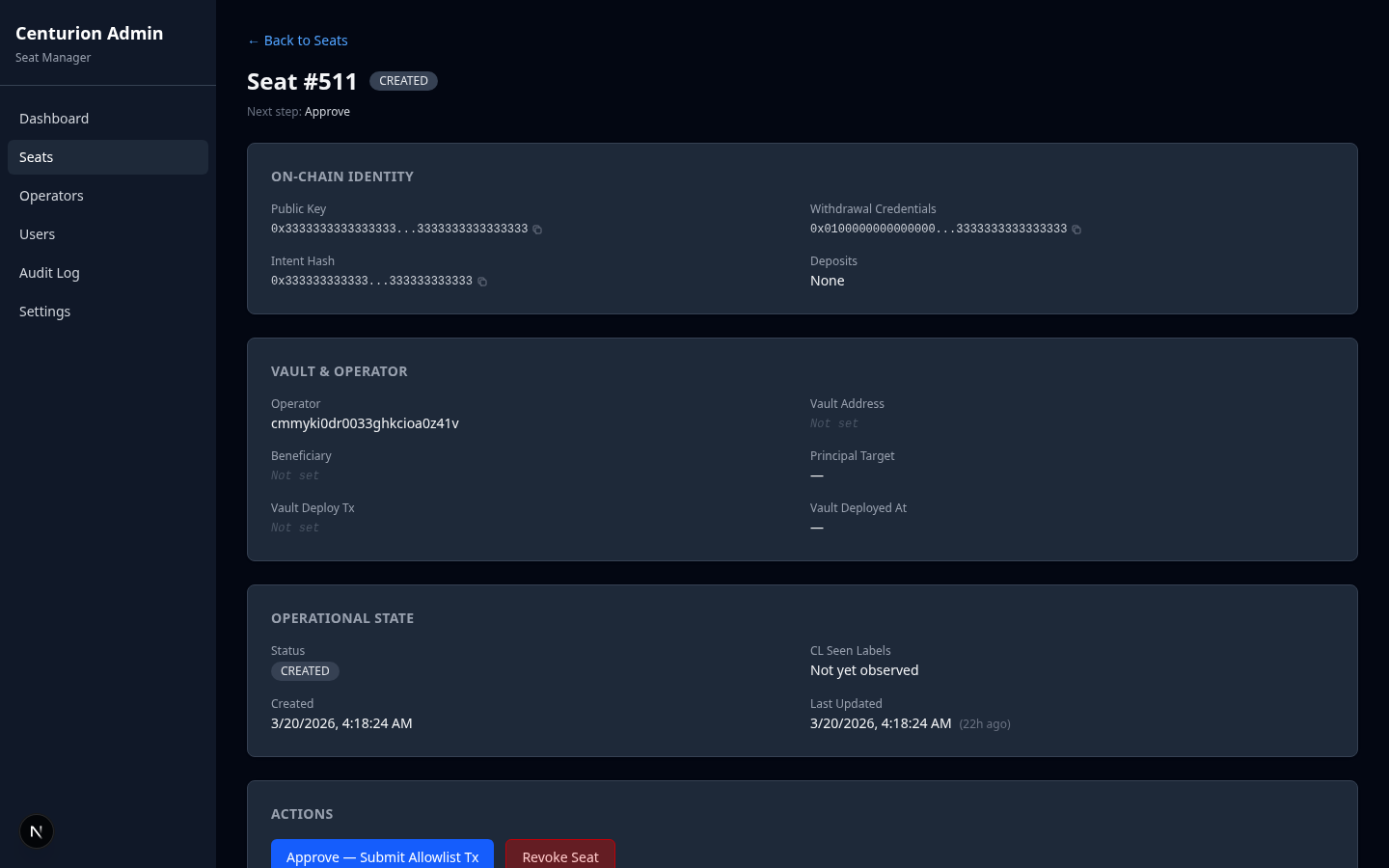
Click any seat ID to open the detail view. This page shows the complete state of a single seat across four sections:
On-Chain Identity
| Field | Description |
|---|---|
| Public Key | Full BLS pubkey (copyable) |
| Withdrawal Credentials | Full WC (copyable) |
| Intent Hash | keccak256(pubkey || wc || amountGwei || authorizedDepositor || ownershipEpoch) (copyable) |
| Deposits | Count and total Gwei from observed deposit events |
Vault & Operator
| Field | Description |
|---|---|
| Operator | Assigned operator name |
| Vault Address | Deployed vault contract (copyable) |
| Beneficiary | Reward recipient wallet (copyable) |
| Principal Target | Staked amount in CTN |
| Vault Deploy Tx | Deployment transaction hash (copyable) |
| Vault Deployed At | Deployment timestamp |
Operational State
| Field | Description |
|---|---|
| Status | Current lifecycle state (color-coded badge) |
| CL Seen Labels | Endpoint labels where the validator was observed on the beacon chain |
| Created / Updated | Timestamps with relative time display |
| Last Allowlist Action | Most recent on-chain allowlist operation (action type, result, tx hash, block) |
Lifecycle Timeline
A visual timeline showing every status transition, including:
- Transition (e.g.,
CREATED → ALLOWLISTED) - Actor who triggered the transition
- Reason (if provided)
- Timestamp
Audit History
The most recent audit log entries for this specific seat, with a link to the full audit log pre-filtered to this seat.
Actions
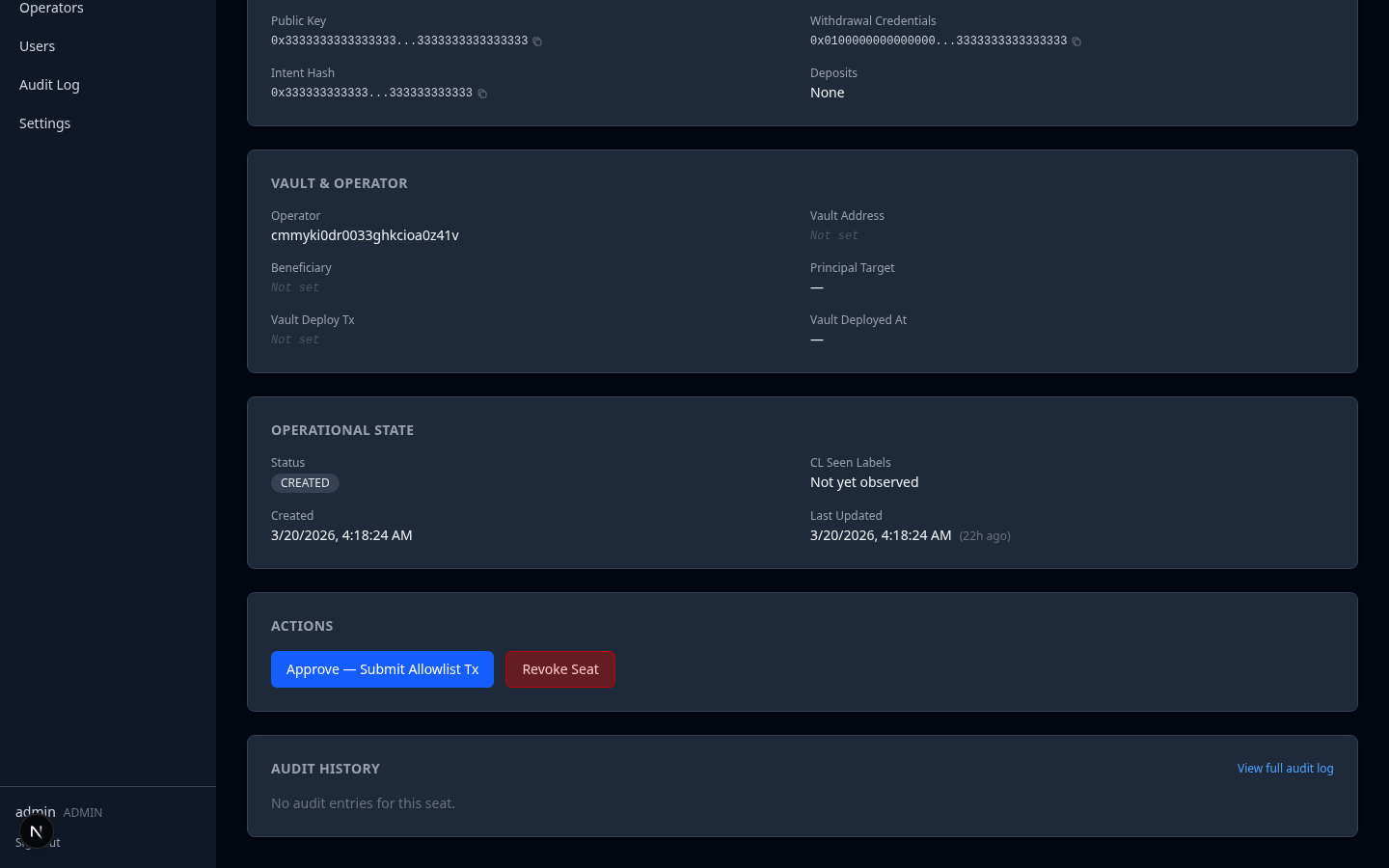
Action buttons appear at the bottom based on the seat's current status (same as the row actions on the list page). Each action opens a confirmation dialog.
Action Confirmation Dialogs
Every on-chain action requires explicit confirmation through a dialog. Safety gates increase with the severity of the action.
Approve
- Shows the pubkey and the status transition (
CREATED → ALLOWLISTED) - Explains that an
addAllowedDeposittransaction will be submitted - Single confirmation button
Deposit
- Shows the pubkey, deposit amount, and status transition (
ALLOWLISTED → DEPOSITED) - Requires checkbox acknowledgment: "I have verified the seat details and confirm this deposit"
- Notes that a real on-chain transaction transferring CTN will be submitted
Revoke
- Shows the pubkey, current status, and transition to
REVOKED - If the seat has on-chain deposits, displays a warning that revocation is operational only (deposits cannot be reversed)
- Requires typing
REVOKE-<id>to confirm (e.g.,REVOKE-42) - Optional reason field
Operators
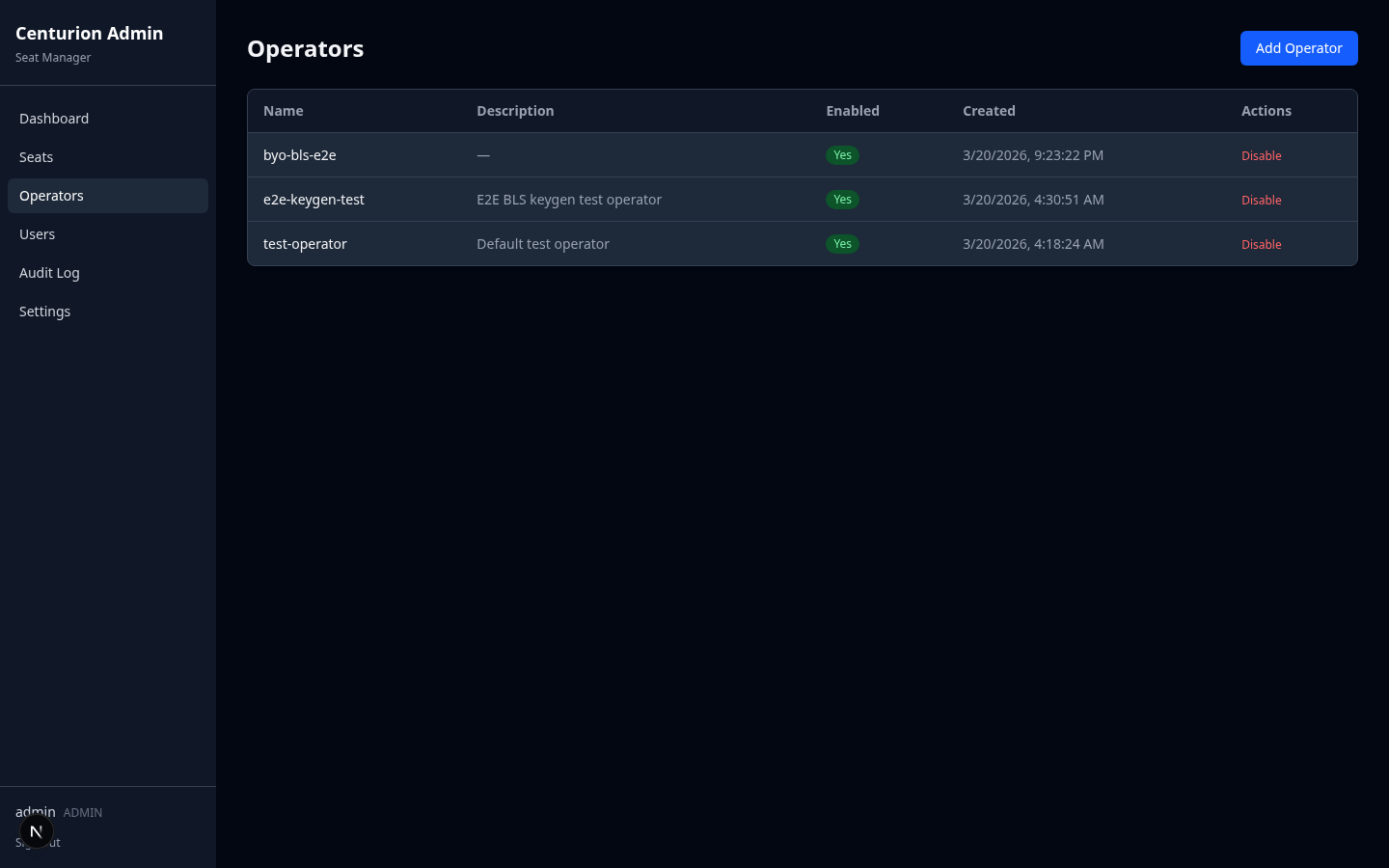
Operators are entities assigned to seats. Each seat belongs to exactly one operator.
Operator List
The table displays:
| Column | Description |
|---|---|
| Name | Operator identifier |
| Description | Optional notes |
| Enabled | Green/red badge |
| Created | Timestamp |
| Actions | Enable/Disable toggle |
Disabled operators cannot be selected when creating new seats.
Creating an Operator
Click Add Operator to open the creation dialog.
| Field | Description | Validation |
|---|---|---|
| Name | Unique operator identifier | Required, 1–100 characters |
| Description | Optional notes | Up to 500 characters |
Enabling / Disabling
Click Enable or Disable in the row actions. Disabling an operator prevents it from being assigned to new seats but does not affect existing seats.
Users
ADMIN role required
The Users page is only accessible to users with the ADMIN role. Other roles see a permission notice.
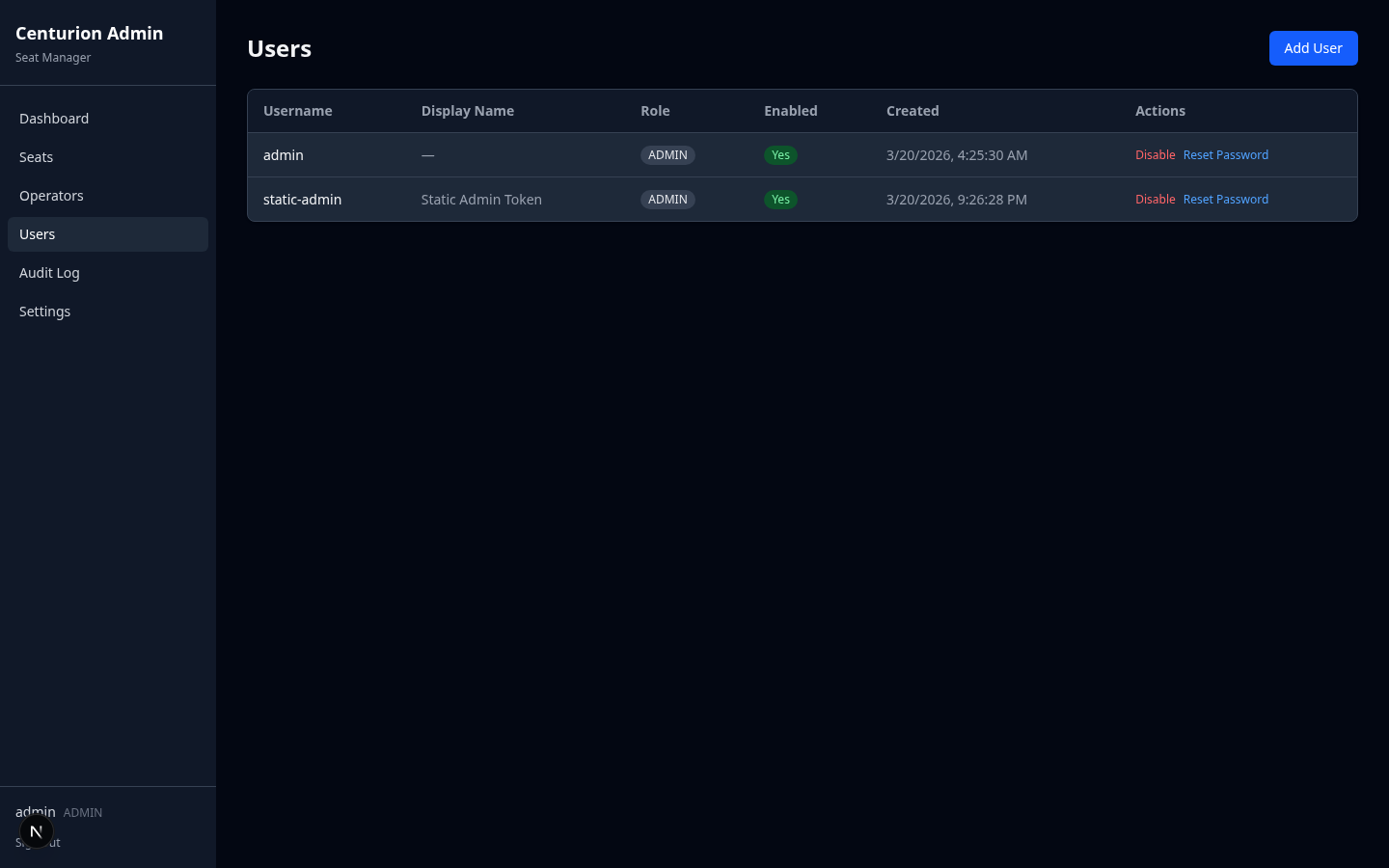
User List
| Column | Description |
|---|---|
| Username | Login name |
| Display Name | Friendly name |
| Role | ADMIN, OPERATOR, or VIEWER badge |
| Enabled | Green/red badge |
| Created | Timestamp |
| Actions | Enable/Disable, Reset Password |
Creating a User
Click Add User to open the creation dialog.
| Field | Description | Validation |
|---|---|---|
| Username | Login identifier | Required, 1–100 characters |
| Password | Initial password | Required, minimum 8 characters |
| Role | Permission level | VIEWER (default), OPERATOR, or ADMIN |
| Display Name | Friendly name | Optional, up to 200 characters |
Role Permissions
| Role | Can do |
|---|---|
| ADMIN | Everything: user management, create/approve/revoke/deposit seats, generate keys, allowlist controls, freeze |
| OPERATOR | Create seats, create operators, view all data |
| VIEWER | Read-only access to seats, operators, audit logs |
Password Reset
Click Reset Password in the row actions. Enter a new password (minimum 8 characters). On success, all of the user's existing sessions are revoked — they must log in again with the new password.
Enabling / Disabling Users
Disabled users cannot log in. Their existing sessions are not automatically revoked — they expire naturally or can be revoked via password reset.
Audit Log
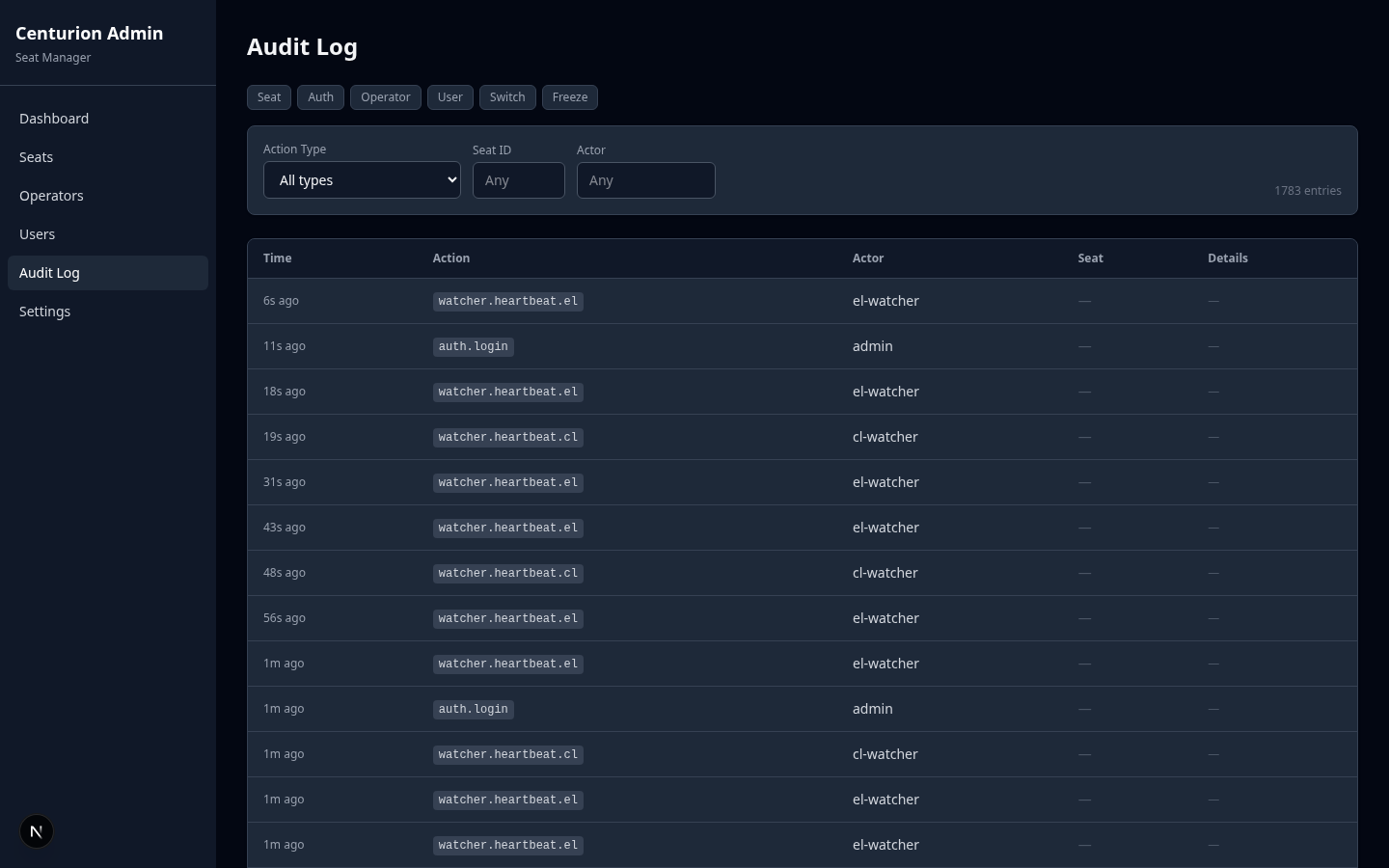
The Audit Log provides a searchable, paginated history of every action taken through the system.
Quick Filters
Filter buttons across the top let you quickly filter by action family:
| Filter | Actions shown |
|---|---|
| Seat | All seat.* actions (create, approve, revoke, deposit, etc.) |
| Auth | Login and logout events |
| Operator | Operator create, enable, disable |
| User | User create, enable, disable, password reset |
| Switch | Allowlist enable/disable |
| Freeze | Freeze schedule, cancel, execute |
Multiple filters can be active simultaneously. Click a filter again to deselect it.
Detailed Filters
Expand the filter section for more precise queries:
| Filter | Description |
|---|---|
| Action Type | Specific action (dropdown populated from observed action types) |
| Seat ID | Filter to a specific seat |
| Actor | Filter by username |
Audit Table
| Column | Description |
|---|---|
| Time | Relative timestamp (hover for full date) |
| Action | Color-coded action badge |
| Actor | Username or system actor |
| Seat | Linked seat ID (if applicable) |
| Details | Reason or metadata (truncated, hover for full text) |
Pagination shows 30 entries per page with Previous/Next controls.
Settings
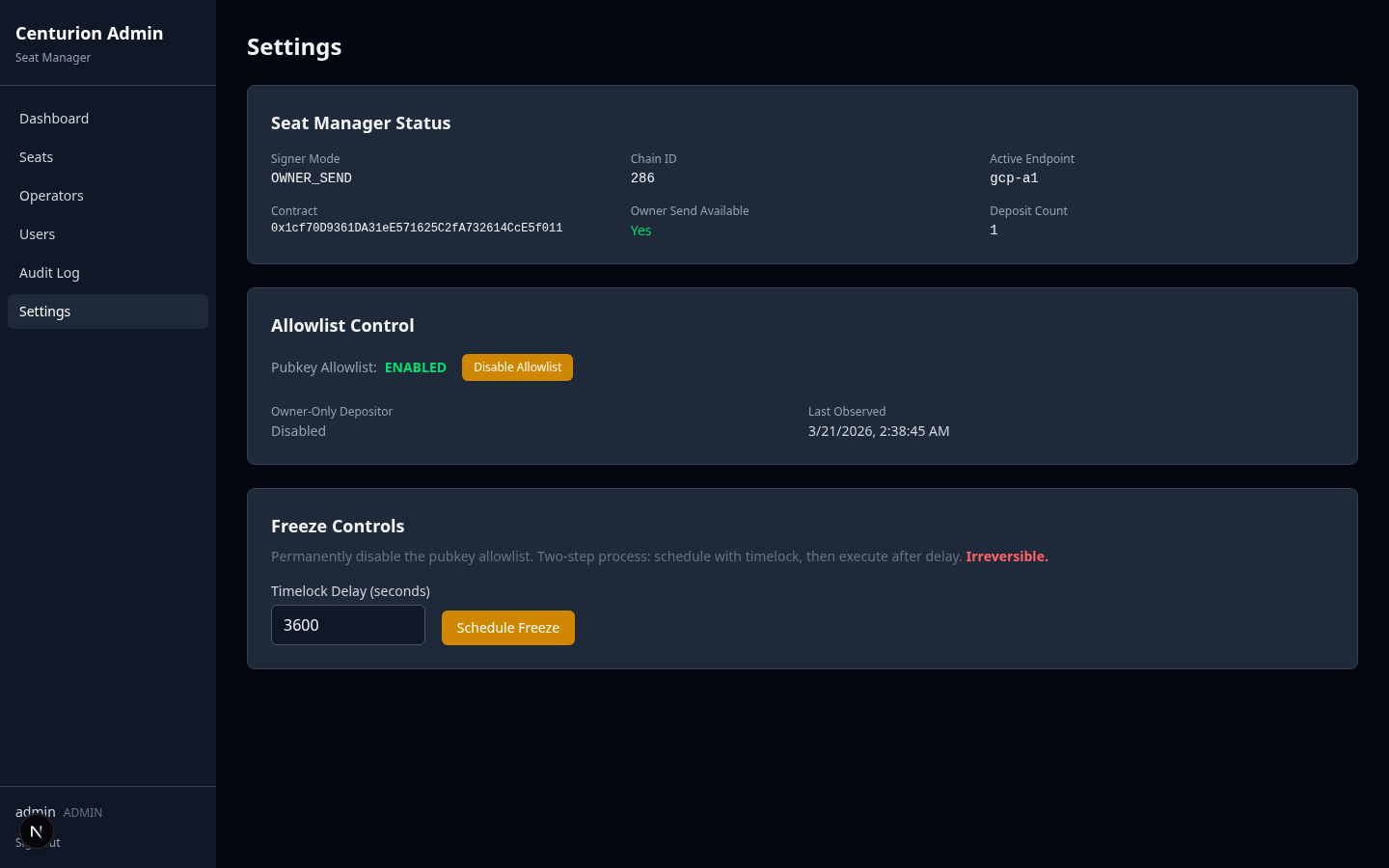
The Settings page controls the DepositContractCTN allowlist and freeze pipeline.
Seat Manager Status
Read-only panel showing current system configuration:
| Field | Description |
|---|---|
| Signer Mode | How transactions are signed (local key, KMS, or propose-only) |
| Chain ID | Connected chain |
| Active Endpoint | Current node connection |
| Contract | Deposit contract address |
| Owner Send Available | Whether on-chain transactions can be sent (vs. propose-only mode) |
| Deposit Count | Number of deposits processed by the contract |
Allowlist Controls
Displays the current state of the pubkey allowlist and owner-only depositor gates.
Enable / Disable Allowlist
| Action | Effect | Confirmation |
|---|---|---|
| Enable Allowlist | Only allowlisted pubkeys can deposit | Simple confirmation |
| Disable Allowlist | Any pubkey can deposit (no allowlist gate) | Checkbox acknowledgment required |
Both actions submit on-chain transactions (setPubkeyAllowlistEnabled).
Freeze Pipeline
The freeze pipeline permanently and irreversibly disables the pubkey allowlist. It uses a three-step process with a mandatory timelock.
Step 1: Schedule Freeze
Enter a timelock delay in seconds (default: 3600 = 1 hour). This sets the earliest time the freeze can be executed.
- Submits
scheduleDisablePubkeyAllowlistForeveron-chain - The freeze cannot be executed until the timelock expires
Step 2: Wait or Cancel
While the timelock is counting down:
- A yellow alert shows the scheduled execution time
- Cancel Freeze is available to abort (resets the timelock to 0)
Step 3: Execute Freeze
Irreversible — no undo
Executing the freeze permanently disables the pubkey allowlist. This cannot be reversed by anyone, including the contract owner.
Once the timelock has expired, the Execute Freeze button becomes available. This action has the highest safety gates:
- Type to confirm: You must type
FREEZE FOREVERexactly - Checkbox: "I understand this action is permanent and irreversible"
- The button is red and clearly labeled as permanent
After execution, the Settings page shows a red banner: "The pubkey allowlist has been permanently disabled."
Safety Model
The admin frontend enforces progressive safety gates based on the severity of each action:
| Action | Safety Gate |
|---|---|
| Create seat / operator / user | Simple confirmation |
| Approve seat | Confirmation dialog with transaction warning |
| Deposit CTN | Checkbox acknowledgment + transaction warning |
| Disable allowlist | Checkbox acknowledgment |
| Revoke seat | Type-to-confirm (REVOKE-<id>) |
| Reset password | Confirmation prompt |
| Execute freeze | Type-to-confirm (FREEZE FOREVER) + checkbox |
All mutating POST requests include an Idempotency-Key header to prevent duplicate operations on network retries.